
How to Extract Invoice Data from PDFs into Google Sheets (Free Tool)
Manual invoice entry into Google Sheets is slow, error-prone, and leaves no audit trail. At 50 invoices a month, you’re spending 6+ hours on copy-paste. Any transposed digit or missed VAT number won’t surface until a client query or audit forces a trace.
The other problem is provenance. When a figure in your Sheet is questioned six months later, “I typed it from the invoice” isn’t an answer that satisfies an auditor. Without a direct link from each row back to its source document, the chain of evidence is broken.
This post covers how to extract invoice data from PDF to Google Sheets automatically, with a focus on AI Snip: the approach where you describe the fields you need in plain English and the tool pulls them from every matching document. We’ll walk through how AI-based extraction differs from basic OCR, what to look for in a tool, and the exact steps to end up with an audit-ready record.
Why Describe Fields Instead of Drawing Boxes
Basic OCR converts a scanned image or PDF into readable text. Tools like Adobe Acrobat, Google Drive’s built-in PDF viewer, and various free OCR utilities do this, but the result is usually a wall of text that preserves words while losing structure. You can read the content, but you still have to find and copy each figure manually.
Invoice-specific extraction tools go further: they identify which text is a total, which is a date, and output structured fields rather than raw text. But how you tell the tool what you want makes a big difference in practice:
- Box-based tools make you draw a rectangle around each field, on each document layout. It works, but a new supplier layout means redrawing everything.
- AI Snip lets you describe the field once, in plain language: “Invoice number, usually near the top of the page.” The model then locates that value in every document you select, regardless of layout, without you touching the document.
That distinction matters for real invoice workloads, where suppliers rarely share a template. Describing a field once and having it found across dozens of layouts is what turns extraction from a one-off task into a repeatable process.
The fields that matter for accounting use:
- Supplier name and VAT/tax registration number
- Invoice number and issue date
- Line items: description, quantity, unit price
- Net amount, tax amount, total amount
- Payment terms and due date
- Purchase order number (where present)
With AI Snip, you define exactly these fields once, and every invoice extracts them without rework.
What to Look for in an Invoice Extraction Tool
Not all “automated extraction” claims mean the same thing in practice. Before picking a tool, check it against five criteria:
- Custom fields, not a fixed schema. Some tools only extract the handful of fields they were trained on. Look for one that lets you define your own fields by name and description, so a PO number or cost code you need isn’t missing from the output.
- Templates for recurring formats. Can you save your field definitions and reuse them next time the same supplier or bank sends a document? Templates are what separate a one-off extraction from a process your team actually runs month after month.
- Source traceability. Can you get from an extracted figure back to the exact place it came from in the original document, or only back to the uploaded file as a whole?
- Where the data lands. Some tools (Dext, AutoEntry, Hubdoc) sync to an accounting platform like Xero or QuickBooks. Others, including Sheetminer, write directly into Google Sheets. Pick based on where your workflow actually lives, not which tool has the most features on paper.
- Pricing that matches your volume. Per-seat subscriptions penalize small teams with high document volume; pricing tied to documents processed rather than seat count tends to track actual usage more fairly.
3 Ways to Get Invoice Data into Google Sheets
- Manual copy-paste. Open the PDF, find the field, type it in. Fine at low volume (roughly under 10 invoices a month). Error risk compounds as volume increases, and there’s no source link unless you add one yourself.
- Adobe Acrobat’s PDF export. Works reasonably well for digital PDFs with embedded text, where the original document was generated electronically rather than scanned. Scanned documents and complex multi-column layouts produce poor results, and the output is a raw export, not structured fields mapped to your columns.
- A purpose-built Google Sheets add-on with AI extraction. Describe the fields once, run extraction across every document, and write structured values straight to your Sheet with source references. This is the category Sheetminer sits in (100 free credits every month). Tools like Dext and Hubdoc serve a similar extraction purpose but push data to accounting software, not Google Sheets, see our Dext alternative and AutoEntry alternative posts if that’s the gap you’re trying to close.
How to Extract Invoice Data Automatically with AI Snip (Step-by-Step)
The following steps use Sheetminer, which installs as a Google Sheets add-on and runs entirely within Google Sheets.
Step 1: Install Sheetminer from Google Workspace Marketplace
Open any Google Sheet, go to Extensions → Add-ons → Get add-ons, and search for Sheetminer. Install it and grant the requested permissions (access to your Drive and Sheets, required to read your PDF files and write to your spreadsheet).
Once installed, Sheetminer appears under Extensions → Sheetminer in any Sheet you open.
Step 2: Select files from Google Drive
Open the Sheetminer sidebar from the Extensions menu and go to Extract → AI Snip. Use the file picker to select invoice PDFs from Google Drive. You can select multiple files at once for batch processing.
Sheetminer handles PDFs (both digital and scanned), JPG and PNG image files, and multi-page documents. Varying invoice formats across suppliers are fine. You don’t need a uniform template.
Step 3: Define the fields you want AI to extract
For each field you add, you give it three things:
- Field name - a short name such as
Invoice Number,Total, orDate. - What it should contain - a plain-language description of what to look for, for example “The invoice or order number, usually near the top of the page.” This description is what Sheetminer’s model uses to locate the value, so the more specific it is, the more reliable the match.
- Type - Text, Currency, Date, or List.
For line items, use a List field. A List field has its own sub-properties, each with the same name / description / type structure. Running extraction against a Line Items list with Description, Quantity, Unit Price, Net, and Tax properties returns a complete line-item table in one pass, one row per item and a column per property. No separate table extraction step needed.
Step 4: Save your fields as a template
Once your fields are defined, click Save as template and give it a name, for example “Acme invoices”. Saved templates appear in the Load saved template dropdown, so next time the same supplier sends an invoice you load the template instead of rebuilding the field list.
Templates are the difference between a one-off extraction and a repeatable process: build the template once per document type (supplier invoices, bank statements, receipts), then reuse it every time that type comes in.
Step 5: Run extraction and review the matches
Click Run extraction. Sheetminer processes every selected document against your field definitions and shows the results under Extracted values, grouped by document (and by row, for List fields), with each value’s matched source highlighted in the document preview. This review step is important: it lets you catch extraction errors before they reach your spreadsheet.
For well-structured digital PDFs, accuracy is high enough that you’ll rarely need to correct anything. Scanned or handwritten documents benefit from closer review.
Step 6: Insert into your Sheet, with source references
Click Preview table to see the results laid out as they’ll appear in the sheet, then Insert into Sheet. Each extracted value stores a reference to its source document. To trace a value back, select any cell and use the sidebar’s source lookup to open the original document.
Audit Trail: Automatic Source Tracing
Sheetminer automatically stores a source reference for every extracted value. To verify any figure: select the cell, click “Inspect cell source” in the sidebar, and the original document opens with the field highlighted on the page.
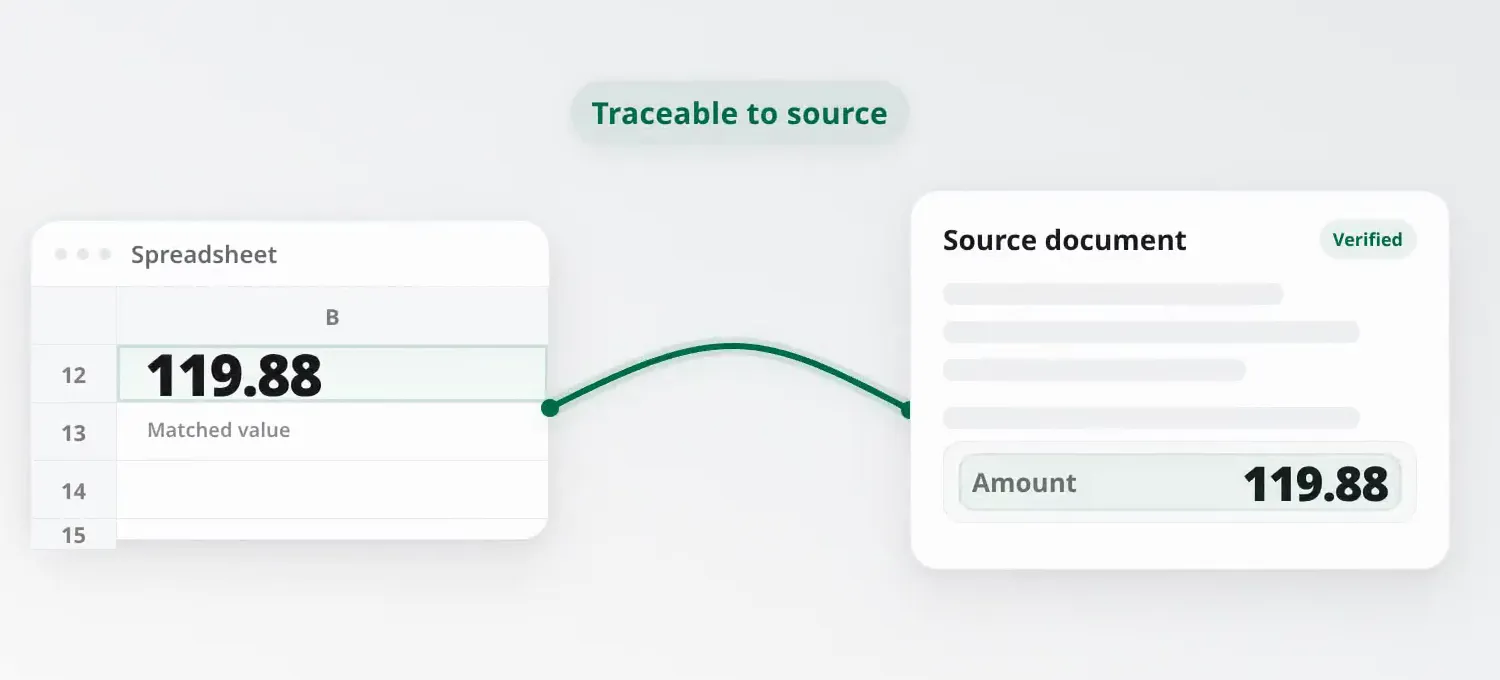
Each extracted value keeps a live link back to its verified source document.
Because source tracing uses Google Sheets’ built-in sharing, anyone with access to the Sheet and the Drive folder containing the source files can verify sources themselves. No extra permissions or logins needed.
For a deeper look at setting up an audit-ready invoice workflow in Google Sheets, see How to Build an Invoice Audit Trail in Google Sheets.
Common Invoice Formats AI Snip Handles
A common concern when evaluating extraction tools is whether they’ll handle your suppliers’ specific invoice formats. AI Snip reads:
- Digital PDFs: invoices exported directly from accounting software (Xero, FreshBooks, QuickBooks). These are the cleanest to extract from.
- Scanned PDFs: paper invoices that have been scanned. Quality depends on scan resolution, but standard office scanning is sufficient.
- Image files: JPG and PNG invoices, common from suppliers who photograph their receipts or send mobile-generated invoices.
- Handwritten documents: less common in B2B contexts but handled by AI extraction. Accuracy is lower than for typed documents; the review step matters more here.
- Multi-page invoices: Sheetminer processes the full document, not just the first page.
- Variable layouts: because fields are described rather than boxed, suppliers with different layouts need nothing extra from you. Saved templates pre-fill your field definitions each run.
Multi-Currency, VAT, and International Invoices
Suppliers don’t all invoice in the same currency or format, and extraction tools need to handle that without manual reformatting. A few things worth checking before committing to a workflow:
- Currency symbols and formats. A total of “1.234,56 €” and “€1,234.56” represent the same amount but use opposite decimal and thousands separators. Structured extraction should recognize the value correctly regardless of which convention the supplier uses, rather than misreading a decimal point as a thousands separator.
- VAT and tax ID formats vary by country. An Irish VAT number, a German USt-IdNr., and a French numéro de TVA all follow different formats. Extracting the field as “tax registration number” rather than assuming a single format keeps this consistent across a supplier base spanning multiple countries.
- Language. Sheetminer’s extraction handles invoices in major European languages (Spanish, French, German, Dutch, Italian, Portuguese) in addition to English. If your firm processes invoices in a specific non-English language regularly, test a sample batch before relying on it for production volume.
Common Mistakes When Automating Invoice Extraction
A few patterns show up repeatedly when firms move from manual entry to an automated tool for the first time:
- Writing vague field descriptions. AI Snip uses your description to locate each value, so “number” is far less reliable than “the invoice number, usually near the top under the supplier name”. Spending two extra minutes on a description saves corrections on every future document using that template.
- Skipping the review step entirely. Automated extraction is fast, but for scanned or handwritten documents, the review-before-write step exists for a reason. Skipping it on the assumption that extraction is always accurate is how an OCR misread (a “0” read as an “8,” for example) ends up in your books.
- Blending net, tax, and total into a single column. This makes both manual and automated entry harder to verify; keep these as separate fields so a reconciliation check can catch a miscalculation.
- Treating the uploaded file as the audit trail. A file sitting in a Drive folder somewhere isn’t the same as a direct reference from the specific cell to the specific field. If a tool only gets you to “the file exists,” you still have field-level tracing to do by hand.
- Assuming one tool fits every document type. Digital PDFs, scans, and handwritten documents have different accuracy profiles. A tool that’s excellent on clean digital invoices may need closer review on scanned or handwritten ones, plan your review effort accordingly rather than treating all documents as equally reliable.
Setting Up Your Sheet for Audit-Ready Processing
Extraction is only half the workflow. The columns you extract into matter just as much for whether the result holds up under review later. At minimum, keep supplier identity, invoice number and date, net/tax/total as separate fields, approval status, and a source document link as distinct columns rather than folding several of these into free-text notes.
If you’re setting this up from scratch, How to Build an Invoice Audit Trail in Google Sheets covers the full column structure, along with setup steps like locking historical rows and adding data validation on payment status.
Frequently Asked Questions
What is AI Snip in Sheetminer? AI Snip is Sheetminer’s custom-field extraction. You define the fields you want by name, a plain-language description of what each one should contain, and a type (Text, Currency, Date, or List). Sheetminer’s model then locates those values in every selected document. Save the field list as a template and the same fields are pulled automatically next time that document format comes in.
Is there an OCR tool for Google Sheets invoices? Yes. Sheetminer uses OCR combined with AI extraction to identify specific fields (totals, dates, VAT numbers, invoice numbers) and writes them directly to named columns in your Google Sheet. Unlike generic OCR tools that output raw text, Sheetminer maps extracted values to your spreadsheet structure automatically.
Is there a free way to extract invoice data into Google Sheets? Sheetminer is free to use: you get 100 credits every month, no credit card required. A page costs 2 credits and each extracted field 1 credit. See the pricing page for current rates.
Does this work for non-English invoices? Sheetminer’s extraction handles invoices in major European languages: Spanish, French, German, Dutch, Italian, Portuguese. For languages outside that set, results will vary. If your firm processes invoices in a specific non-English language regularly, test on a sample batch before committing.
Does AI Snip work on scanned or handwritten invoices? Yes. AI Snip reads digital PDFs, scanned PDFs, and image files (JPG and PNG). For scanned and handwritten invoices accuracy depends on scan quality, so use the review step to check each highlighted match before it lands in the sheet.
What if I only need a single value from a document? Use Text Snip to box a single value into a cell, or define a one-field AI Snip if that value sits in a recurring layout you’ll see again. Each extracted value still links back to the source file.
How accurate is the extraction? For well-formatted digital PDFs, most firms see error rates well below 1%. Scanned and handwritten documents are lower; accuracy depends on scan quality and how consistently the document is laid out. The review step exists precisely because no automated extraction is perfectly accurate across all document types.
What’s the difference between extraction and OCR? OCR (optical character recognition) converts an image or scan into readable text, it’s a building block, not the end result. Structured extraction goes a step further, identifying which piece of recognized text is a total, a date, or a VAT number, and mapping each to the correct column. A tool can use OCR internally while still requiring you to sort the output by hand if it doesn’t also do structured field mapping.
Can I extract data from documents other than invoices? Yes. The same AI extraction and source-tracing approach applies to receipts, contracts, tax documents, and other PDFs or scanned images, not just invoices. AI Snip works on any document type since you describe the fields you need rather than relying on a built-in invoice schema.
Further Reading
This post covers the core extraction workflow. For related topics:
- Dext vs AutoEntry vs Google Sheets — full three-way comparison if your workflow might end in an accounting platform instead.
- Best Dext Alternative for Google Sheets and Best AutoEntry Alternative for Google Sheets — focused comparisons against each tool individually.
- DataSnipper Alternative for Google Sheets — if you’re coming from an Excel-based audit workflow rather than an accounting platform.
- How to Build an Invoice Audit Trail in Google Sheets — the column structure for the audit-ready side of this workflow.
- 5 Ways Accountants Waste Time on Invoice Data Entry — a closer look at where manual entry time actually goes.
Try Sheetminer Free
100 free credits every month, no credit card. If your end destination is Xero, QuickBooks, or Sage rather than Google Sheets, see our Dext vs AutoEntry vs Google Sheets comparison.
Install Sheetminer free →