
AI Snip & Templates
Define custom fields once and extract them in bulk across recurring document formats.
AI Snip extracts a custom set of fields you define, rather than a single boxed value. It’s built for recurring document formats - invoices from the same supplier, statements from the same bank - where you want the same fields pulled every time without redrawing boxes.
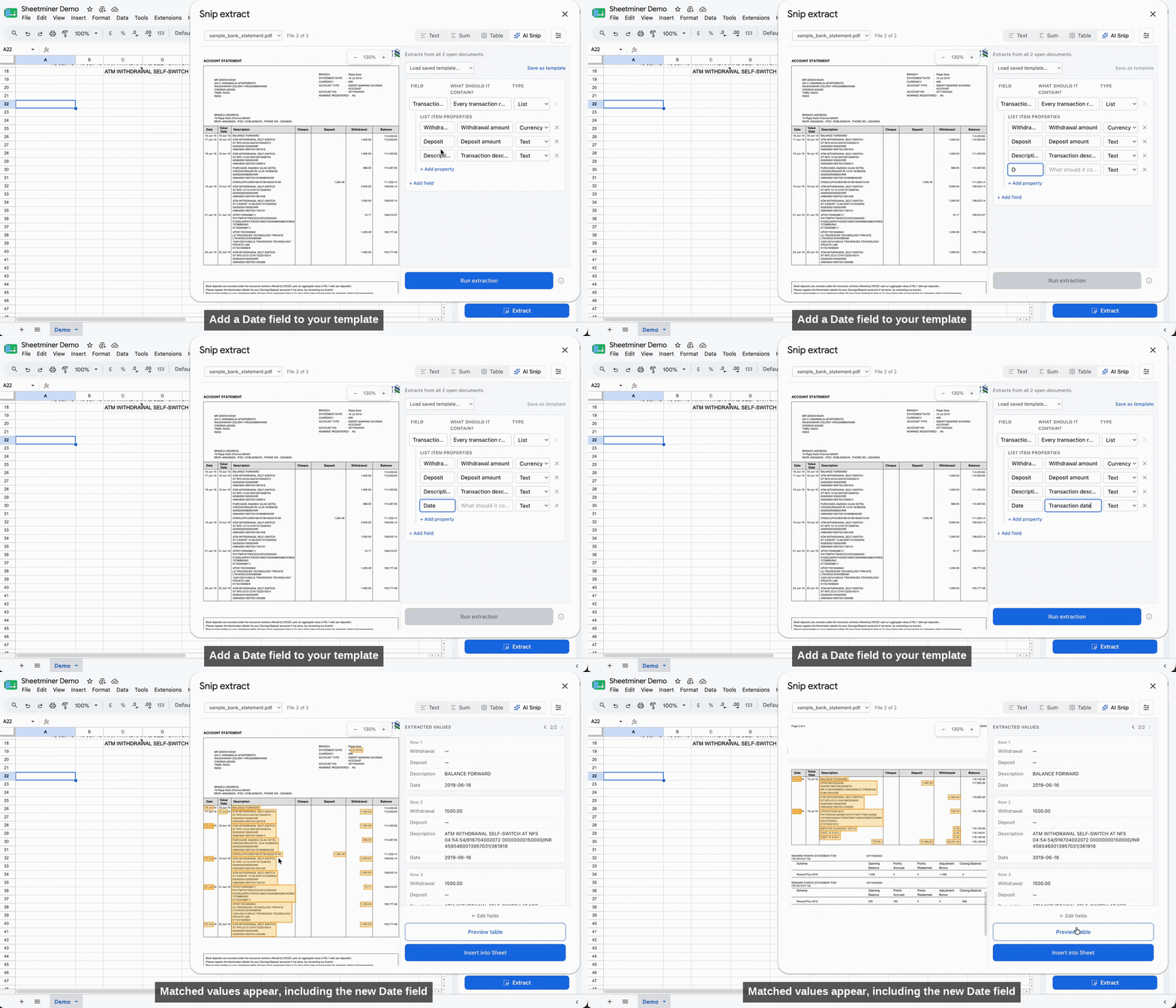
AI Snip: define fields once, extract across every matching document.
Defining fields
Open Extract → AI Snip. For each field you add, you give it:
- Field - a short name (for example,
Invoice Number,Total,Date). - What should it contain - a plain-language description of what to look for (for example, “The invoice or order number, usually near the top of the page”). This description is what Sheetminer’s model uses to locate the value, so the more specific it is, the more reliable the match.
- Type - Text, Currency, Date, or List.
List fields
Use a List field when a document has repeating rows you want extracted together - for example, every transaction in a bank statement, or every line item on an invoice. A List field has its own sub-properties (its list item properties), each with the same Field / description / Type structure as a top-level field. Running extraction against a List field returns one row per repeated item, with a column for each property you defined - so a Transactions list with Date, Description, Deposit, and Withdrawal properties returns a full transaction table in one pass.
Saving a template
Once your fields are defined, click Save as template and give it a name. Saved templates appear in the Load saved template dropdown, so the next time you’re working with the same document format, you load the template instead of rebuilding the field list. Templates are the difference between a one-off extraction and a repeatable process - build the template once per document type, then reuse it every time that type comes in.
Running extraction
Click Run extraction. Sheetminer processes every selected document against your field definitions and shows the results under Extracted values, grouped by document (and by row, for List fields), with the matched source highlighted in the document preview so you can sanity-check each value before it lands in the sheet. Click Preview table to see the results laid out as they’ll appear in the sheet, then Insert into Sheet.
Source link
As with every extraction type, each inserted value keeps its link back to the exact spot it was matched from - open Inspect on any cell to see it.