
Sum Snip
Select a column of numbers in a document and get the total written into a cell.
Sum Snip reads a region of numbers from a document and writes their total into a cell - useful any time you need a subtotal from a statement or invoice without retyping every line.
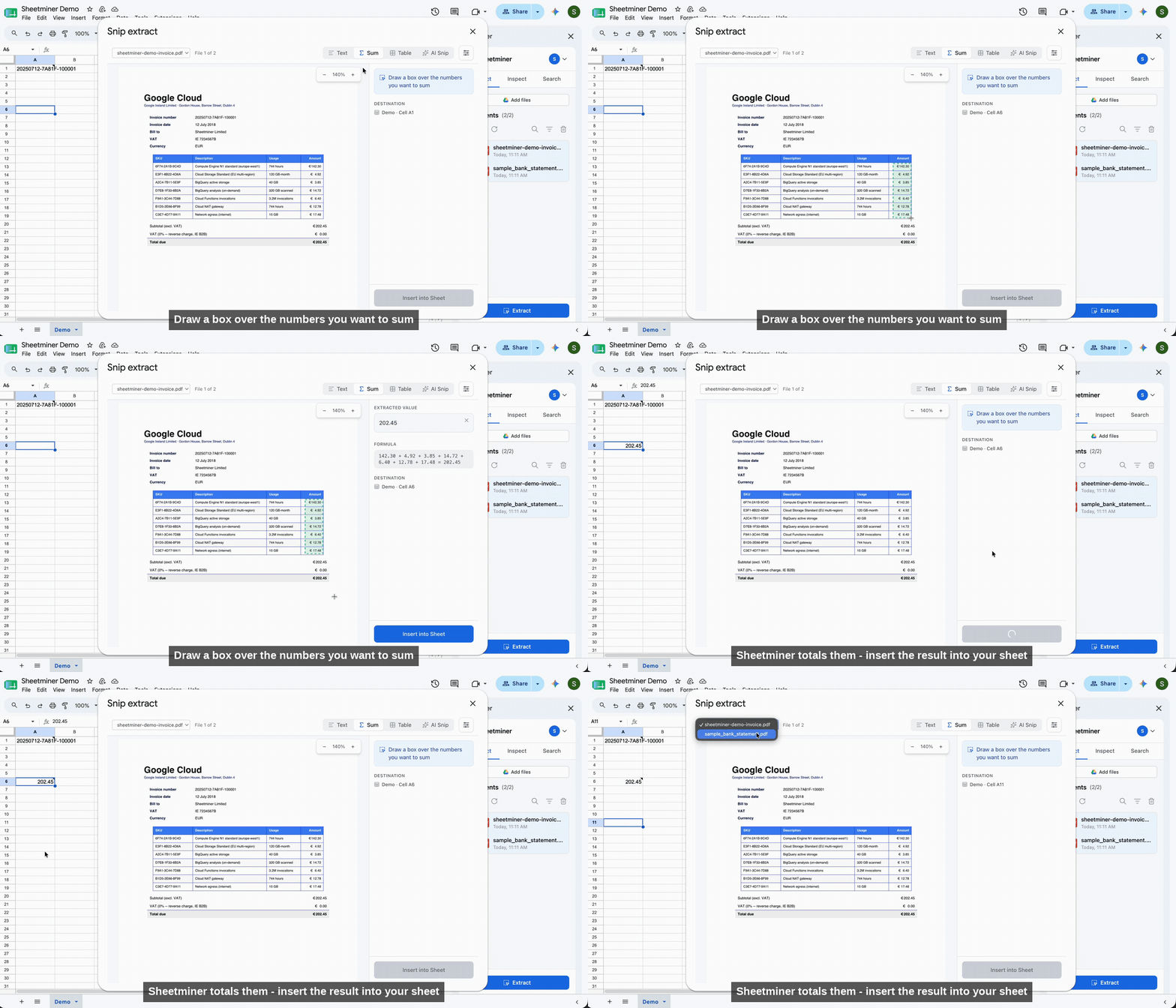
Sum Snip: draw a box over the numbers, get the total.
How to use it
- Select the destination cell.
- Click Extract, then switch to the Sum tab.
- Draw a box over the column (or block) of numbers you want totaled - for example, the Withdrawal column of a bank statement.
- Sheetminer parses each number in the box and shows the running total in the Extracted value panel, along with the full addition underneath it (Formula), so you can see exactly which numbers were included.
- Click Insert into Sheet to write the total into the destination cell.
Checking the formula
The formula shown under the extracted value lists every number Sheetminer picked up in the box, in order, added together. This is the fastest way to catch a bad selection - if a number in the list looks out of place, adjust your box and re-draw it.
What it’s good for
Sum Snip is built for columns that are already numeric in the source document - deposits, withdrawals, line-item totals, tax columns. It skips over non-numeric text inside the box, so you can draw a slightly generous selection without worrying about picking up a stray label.
Source link
Like every Sheetminer extraction, the inserted total keeps a link back to the box you drew, so you can re-open it later with Inspect to double-check what was summed.