
Search & Linking
Point Sheetminer at existing values and a set of documents, and link each cell back to its source automatically.
Search solves a different problem than Snip and AI Snip. Instead of pulling new values out of a document, it takes values you (or someone else) already typed into the sheet and finds where each one came from - turning an unlinked sheet into a linked, source-traceable one.
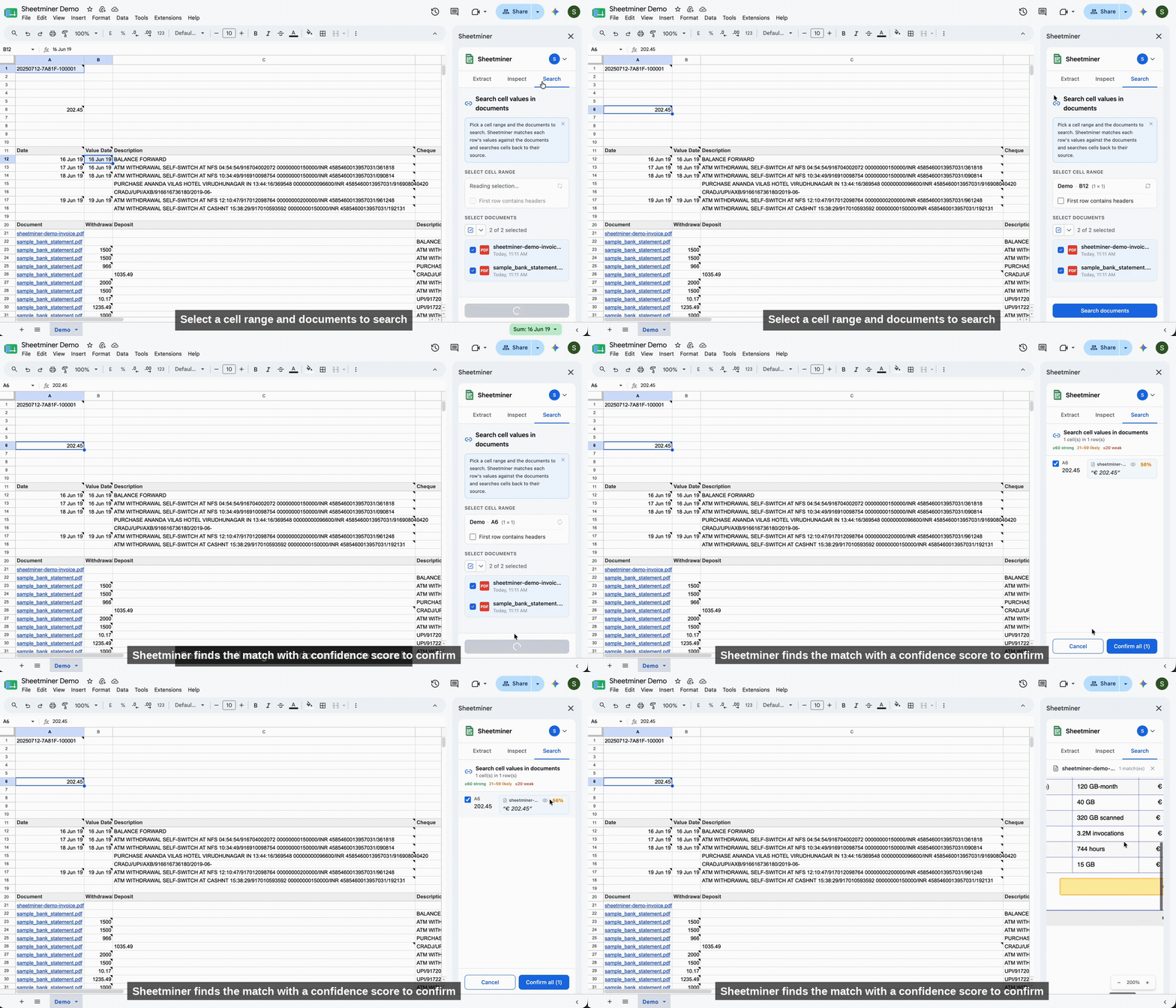
Search: match existing values back to their source documents.
How to use it
- Open the Search tab.
- Under Select cell range, choose the range of existing values you want to trace. Check First row contains headers if your range includes a header row so it’s excluded from the search.
- Under Select documents, choose which uploaded documents to search against - by default all documents attached to the sheet are selected.
- Click Search documents.
Reviewing matches
Sheetminer searches every selected document for each value in your range and returns a match for each cell, with a confidence score:
- ≥60 - strong match
- 21-59 - likely match
- ≤20 - weak match
Each result shows the matched cell, the source document, and the exact matched text. Uncheck any result you don’t want linked, then click Confirm all to accept the remaining matches. Confirmed matches behave exactly like values extracted with Snip or AI Snip - they’re linked to their source and can be opened with Inspect.
What it’s good for
Search is the fastest way to retrofit source traceability onto a sheet that already has data in it - for example, a transaction list you imported from a bank export, matched back against the PDF statements you have on file. It’s also useful for a lightweight three-way-match style check: put the values you expect on one side, the supporting documents on the other, and let Search confirm (or fail to confirm) each one.
Low-confidence matches
A weak match usually means the value appears in the document in a different format than the cell (for example, a date written differently, or a number with different rounding) or doesn’t appear at all. Review these individually before confirming - a weak match is Sheetminer telling you it isn’t sure, not a guarantee that the value is wrong.