
Inspect
Click any extracted cell to see the original document, with the source highlighted, without leaving the sheet.
Every value Sheetminer writes into a sheet keeps a link back to where it came from. Inspect is how you follow that link - it’s the audit trail in practice, not just in theory.
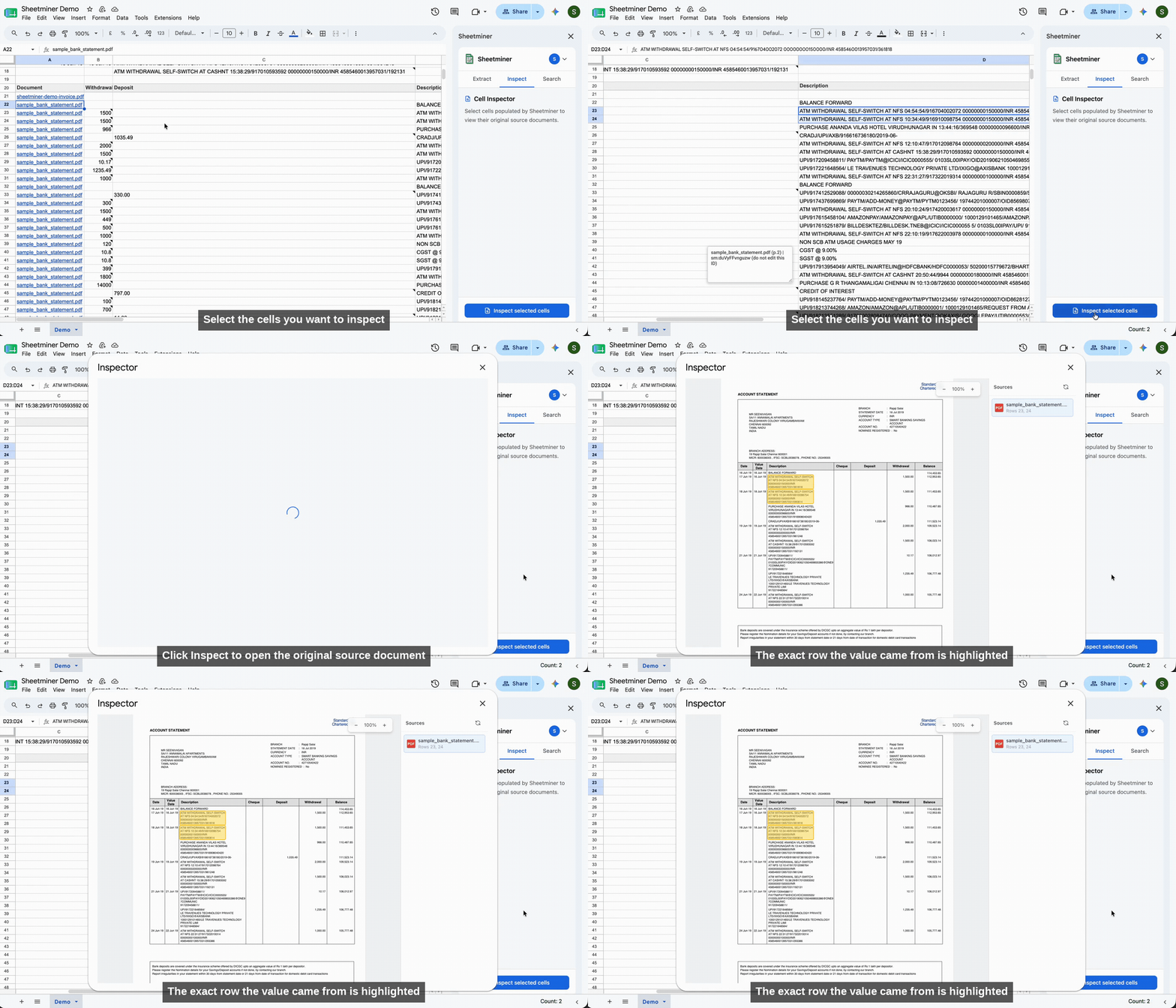
Inspect: trace any cell back to its source document.
How to use it
- Click a cell that Sheetminer populated (Snip, AI Snip, or Search all create linked cells).
- Open the Inspect tab in the sidebar and click Inspect selected cells.
- A viewer opens showing the original source document, scrolled and zoomed to the exact location the value was read from, with that location highlighted.
You can select more than one cell before opening Inspect - the viewer lists every source document involved under Sources, and clicking between them jumps the preview to each one in turn.
Why this matters
Sheetminer is built for teams that need to show their work - accountants, auditors, and finance teams who can’t just trust a number, they need to be able to prove it. Instead of keeping a separate reference to a page number or a paper printout, Inspect puts the original document one click away from any cell, permanently. Anyone with access to the sheet can verify a number without asking whoever ran the original extraction.
What you can’t do here
Inspect is read-only by design - it’s a verification view, not an editing surface for the source document. If a value is wrong, correct it in the sheet directly (or re-run the extraction); Inspect exists so you can confirm what’s correct before you rely on it.